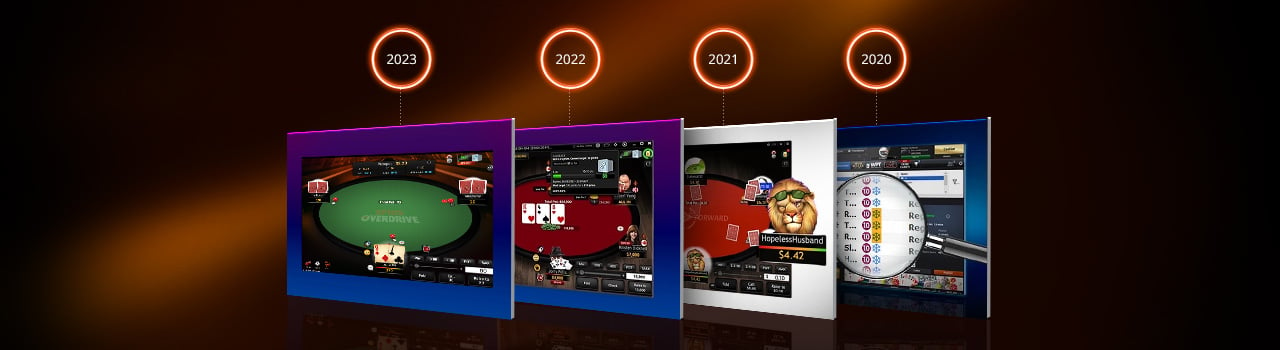
Software Updates
Stay up to date with the latest version of the partypoker client software, and learn more about each new feature!
- SPINS Overdrive is an exciting new SPINS game. It is the first change to the SPINS game model in a decade and is unique to PartyPoker.
- SPINS Overdrive will keep the same 3 player format.
- The most exciting difference is that the new SPINS Overdrive will offer a different prize each time the majority of players play. This is thanks to new mathematical modelling.
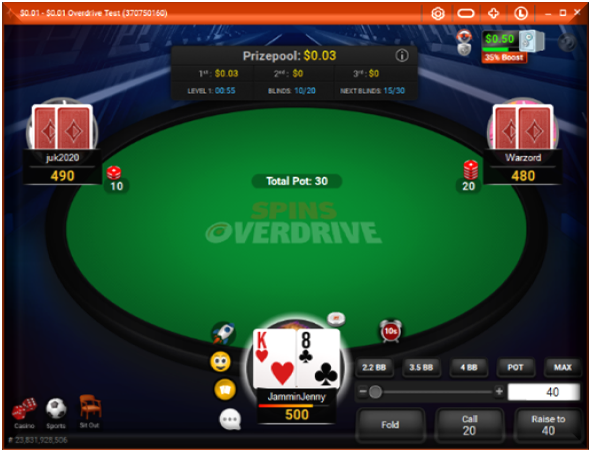
- The new SPINS prizes will be awarded through a multiplier of between 2x and 12000x times a player’s buy in making a huge number of unique prizes.
- Every time you play SPINS Overdrive you will be shown the prize through a racing car which will race to the finishing line to reveal your unique SPINS prize.
Table chat is back
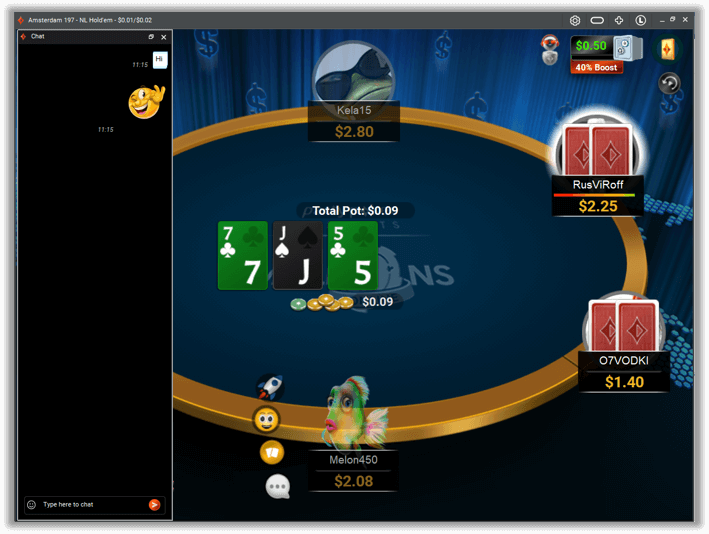
Table chat makes a return with a brand new design for table 3.1!
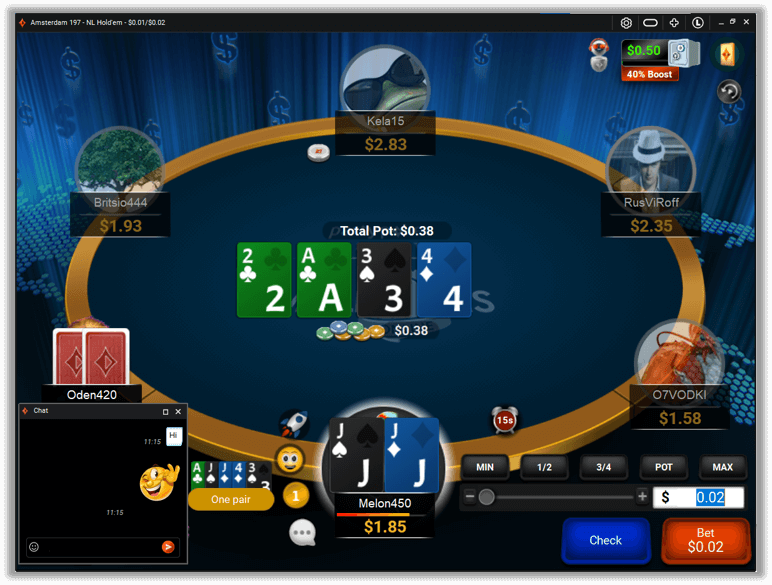
Chat to your rival players
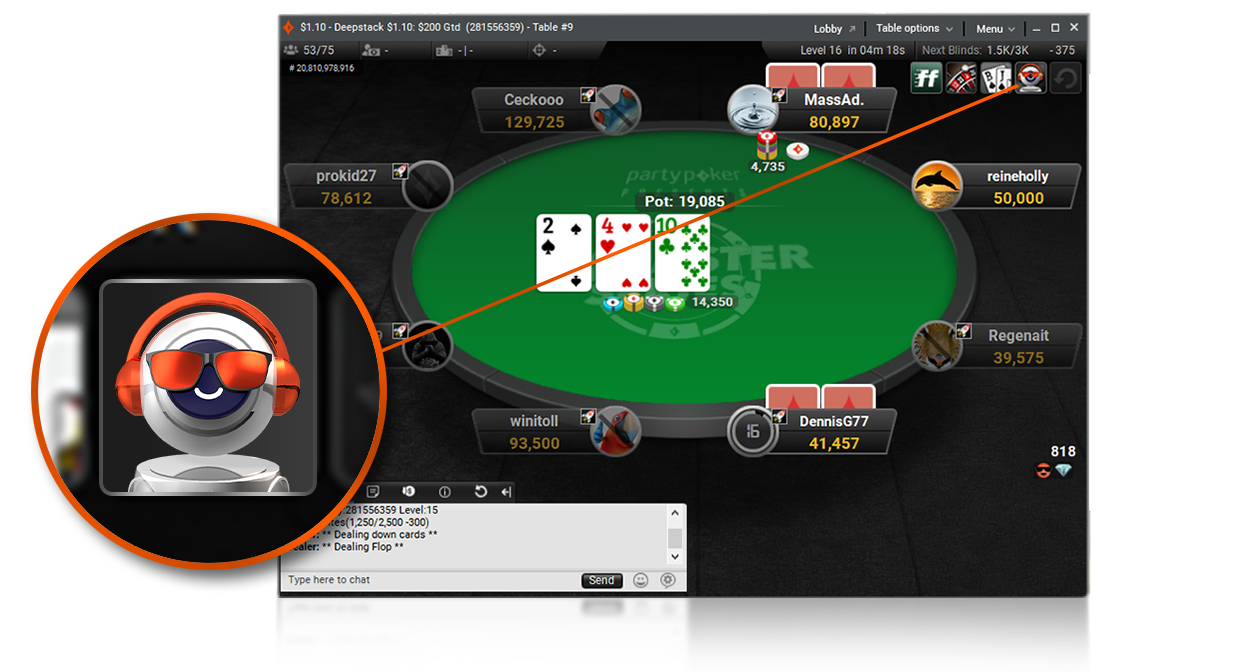
Players can chat and send emoticons and emojis to each other. The table chat feature can be accessed via the new table chat icon next to the player plate. Chat bubbles surface at the top right of your opponent’s cards when they chat.
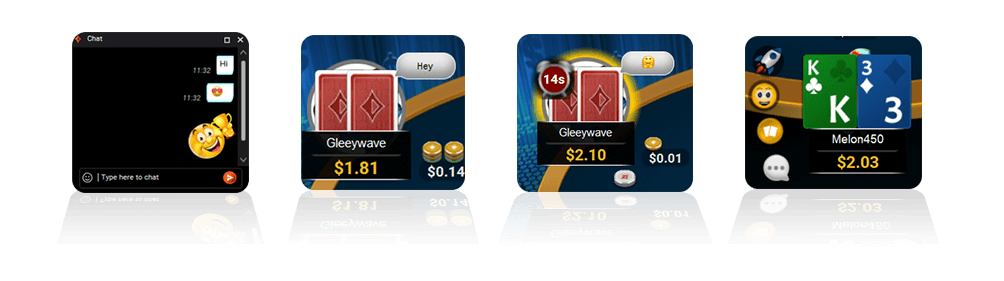
Full control to chat your way
Expand the chat window to the full length of the table, or close the window entirely by using the controls in the top bar of the chat window.
Cashback 2.0 June 2022
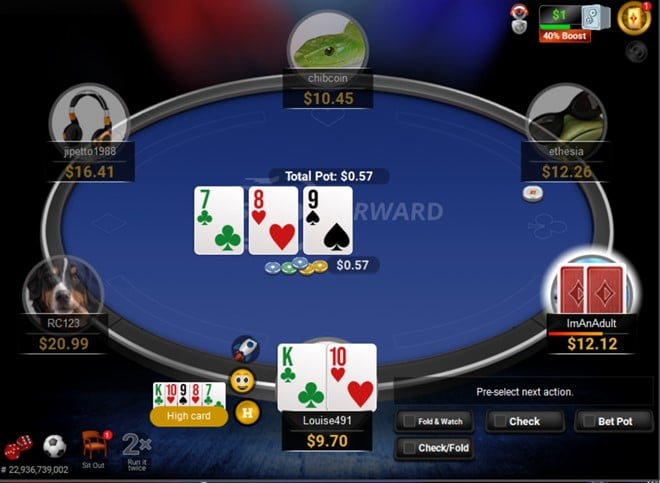
We’ve upgraded our cashback program to award more cashback to more players than ever before! Opt in to make sure you don’t miss out on your cashback.
Once you opt in, it’s easy to check your cashback balance

Make sure you opt into cashback to receive all these benefits:
- Earn more points, faster with variable points
- Easier to unlock first cash reward
- Individual player boosts every week
- Improved progress bar to make things clearer and more transparent
- Get paid in real cash – no bonuses, no wagering requirements, no nonsense
- Automatic payments every Monday when you qualify for cashback
- Cashback resets each week, so there’s no pressure to play every single day of the month
- You’ll still have chances to earn boosted points from other promotions on top!
All-in Cashout June 2022
All-in Cashout is our new feature that allows you to lock in your profits when you go all in. Never suffer from a bad beat again!
Nobody likes a bad beat story, which is why we’ve introduced our All-In Cashout feature!
Try our All-In Cashout feature now to lock in profit based on your odds of winning the pot!

How does All-In Cashout work?
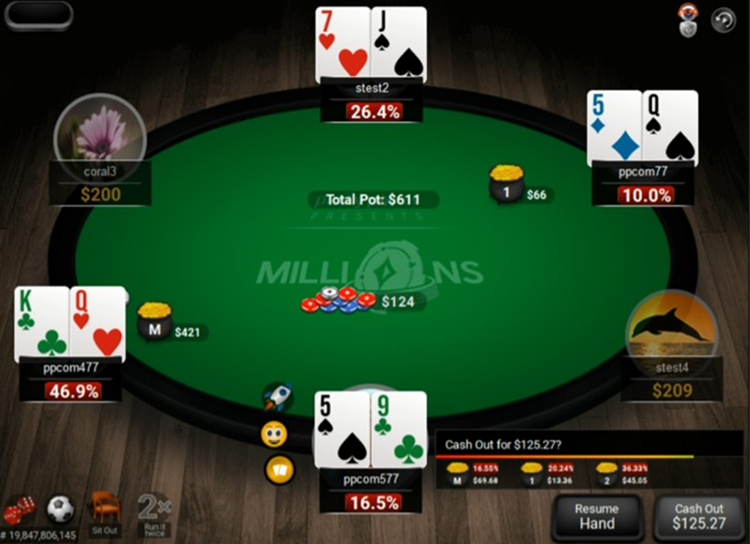
A button will appear on your table whenever All-In Cashout is available. If you choose to use it, your funds will instantly be locked in. You’ll receive profit even if you would have gone on to lose the hand.
P$ April 2022
P$ are our new, flexible poker currency giving you the flexibility to spend your P$ on cash games, fastforward, MTT, SPINS and Sit & Go games.
P$ in Windows
P$ have arrived at PartyPoker. P$ are our new, flexible poker currency.

You can check your P$ balance in your account section.
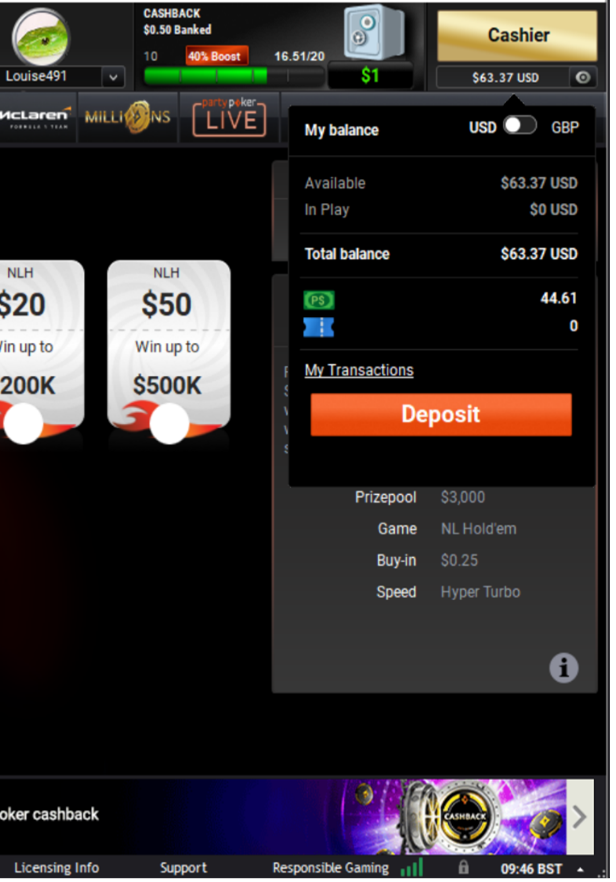
You can spend your partydollars (P$) on all of your favourite cash games, fastforward, MTT, SPINS and Sit & Go games.
Tables 3.0 January 22
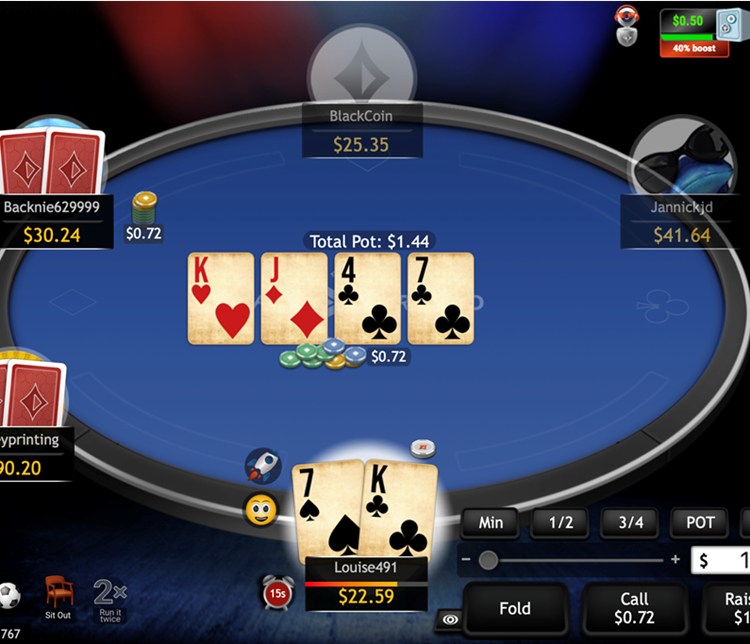
Based on your feedback, we've increased the size of the game cards and changed the angles of cards for both Hold'em and Omaha games to enhance the player experience.
We've increased the size of the game cards and changed the angles of cards for both hold'em and omaha games to enhance to player experience based on feedback from you!
Following the removal of our legacy table, we have increased the size of the game table and the player avatars – including an extra-large version of your own avatar – creating a more enjoyable, immersive playing experience.
FASTFORWARD
Optimised the seating logic of our Fast Forward games to improve player experience.
Bigger table & player avatars
We’ve boosted the size of the table and avatars to make everything clearer and improve gameplay experience.
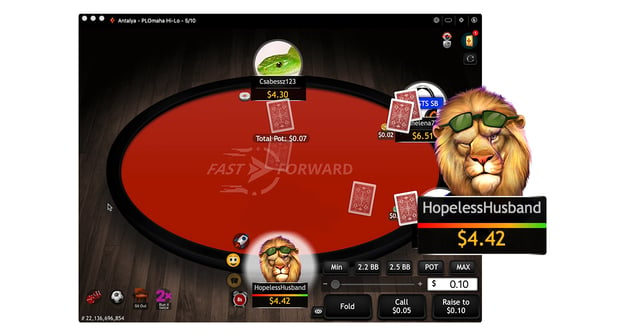
Improved table graphics & animations
Enhanced graphics and animations including new cards, emojis, avatars and throwables.
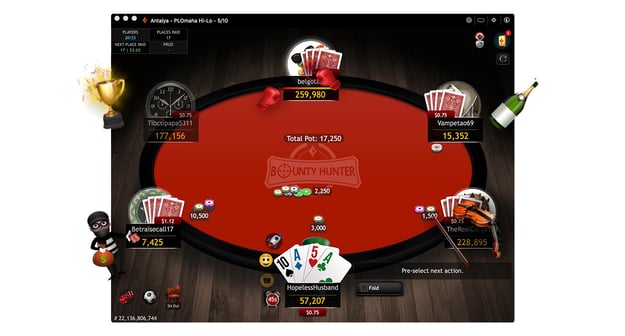
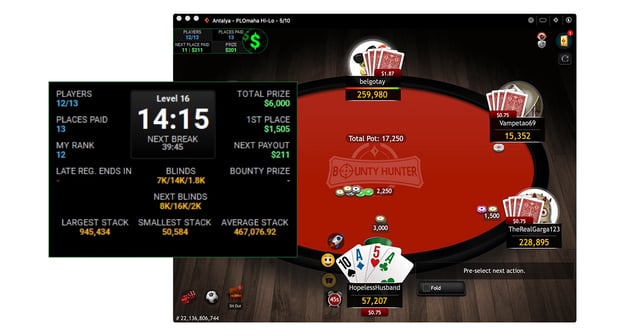
Expansive in-the-money (ITM) indicator with detailed mouse overview
Check all the vital statistics without having to leave the table. Click on the ITM indicator in the top-left for a full breakdown.
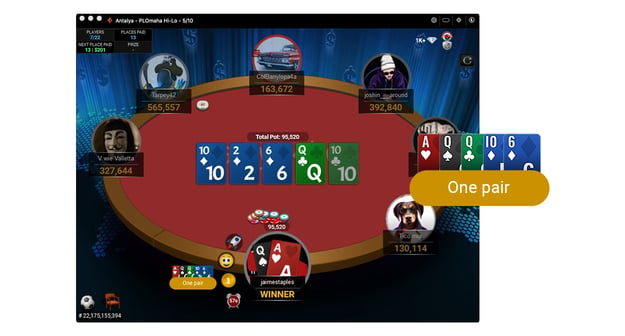
Improved hand strength display
Your hand strength automatically updates throughout the hand, so you never have to worry about accidentally missing a backdoor flush or straight again.
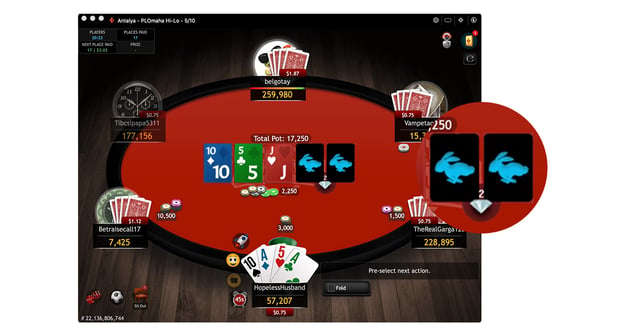
Rabbit Hunt improvements
We’ve made Rabbit Hunt more intuitive. After a hand ends, click on the hole cards themselves to reveal what would have come up, had the hand continued.
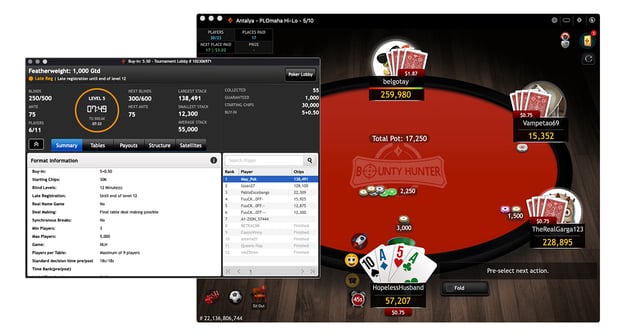
Updated rank dialogues with improved design
Easily share your results with new and improved rank dialogues, which pop up at the end of a tournament to show where you finished and how much you won.
Upgraded timebank UI
Timebanks have been redesigned and repositioned so that you can easily see how much time is left to act – not just for you, but your opponents as well.
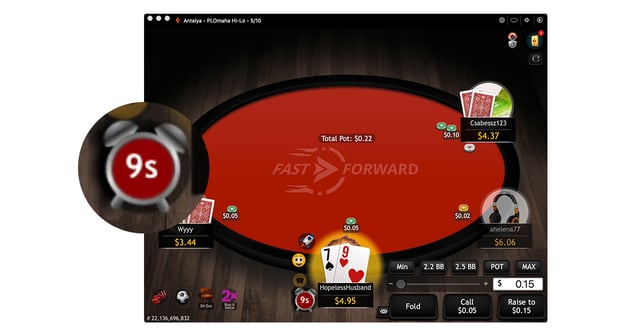
Upgraded note taking & label creation
Right-click on an opponent to quickly add custom notes. A coloured ring will be displayed around their avatar, so you can quickly distinguish between players you’ve labelled as dangerous or easy pickings.
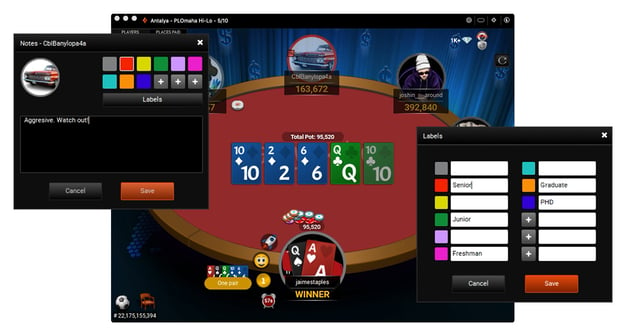
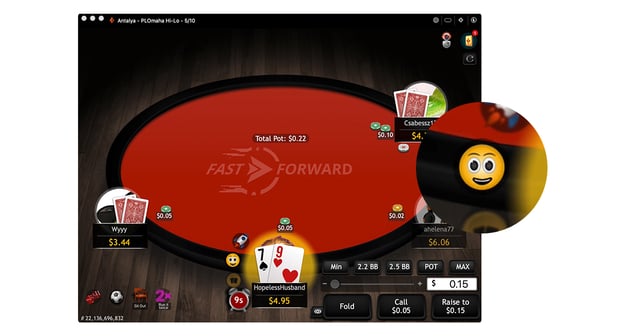
Changes to make throwables and emojis more easily accessible
Use the convenient symbols next to your avatar to quickly select throwables and emojis. Any text in the emojis is automatically translated to each player’s local language, so your opponents will always understand what you’re saying!
Improved animations for SPINS, dealing hole cards and community cards
Card and dealing animations across all cash games and tourneys have been upgraded. Plus, there’s a new prize feature animation for SPINS tournaments to add to the excitement.
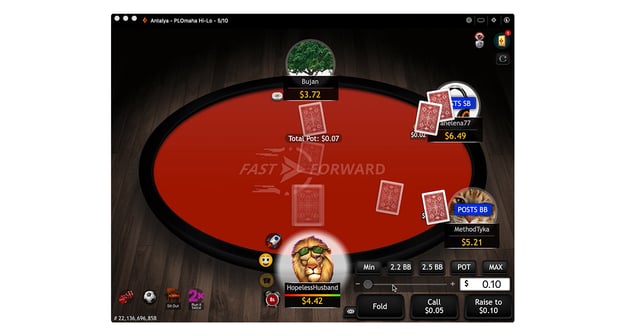
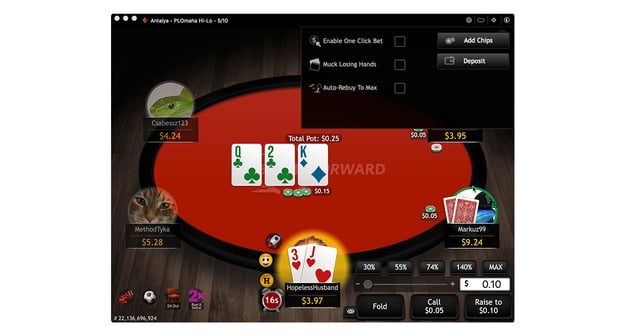
Access to settings from game table
Conveniently edit settings from your table, without having to return to the main lobby.
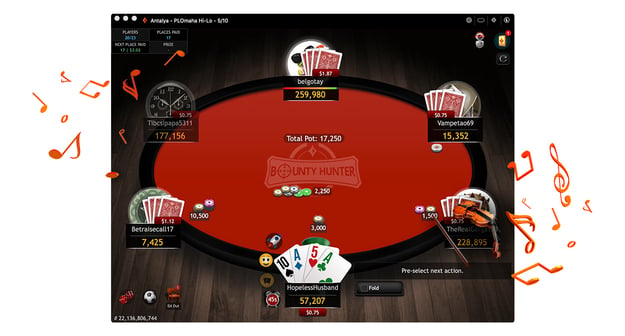
Improved game sounds
Spruced up game sounds give tables a more modern and immersive atmosphere.
We’re also working hard on additional improvements, so watch this space for further updates.
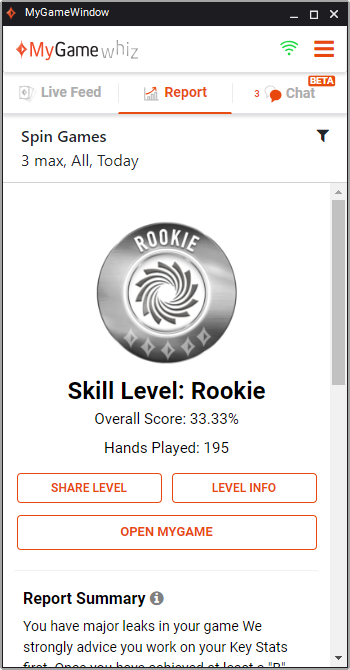
MyGame Whiz
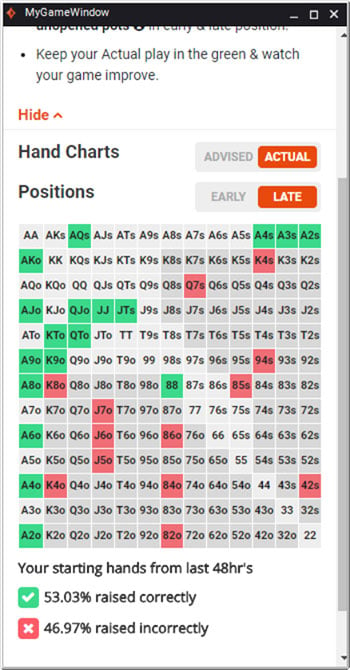
Your free coach, Whiz, is on hand to help you improve your play! Whiz uses MyGame’s analytics to provide you with insights (post-hand). For example, the ‘hand range’ chart below tells you if you have been raising correctly with specific starting hands. Find out more : here
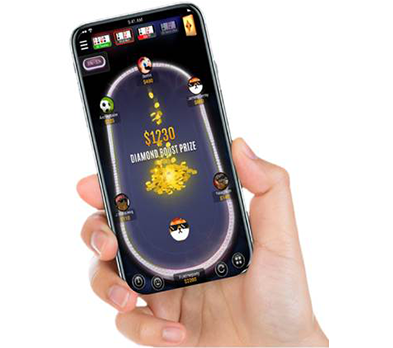
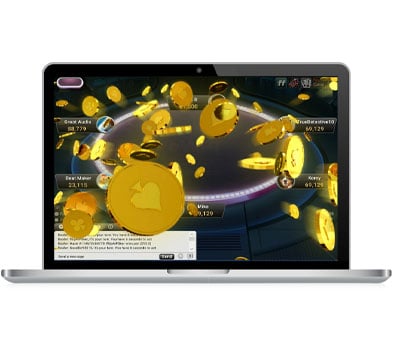
Hot tables
Hot Tables give fastforward and cash game players the chance to win a massive, boosted cash prize at any moment! And we’re boosting thousands of hands every day- find out more here.
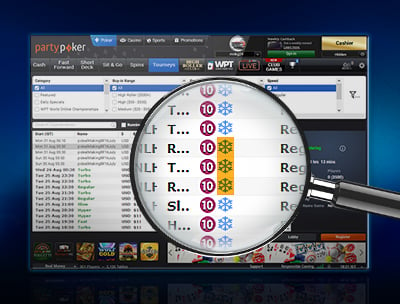
Freezeout Icon
The snowflake icon will help players quickly identify freezeout tourneys, showcasing these ecology friendly formats that partypoker offers in abundance.
Freezeout Icon
In-the-money indicator redesign
The in-the-money indicator layout has been redesigned and blind levels brought back, creating a more clean and immersive experience.

Next blind levels
Club Games
Earn the bragging rights over your friends with Club Games!
These invite-only games allow players on partypoker.com to build their own games, choosing stakes of their choice.
To create your club and to invite players, simply click on the ‘Club Games’ tab in the client and follow the simple instructions.
Find out more information on how to create and join club games here.
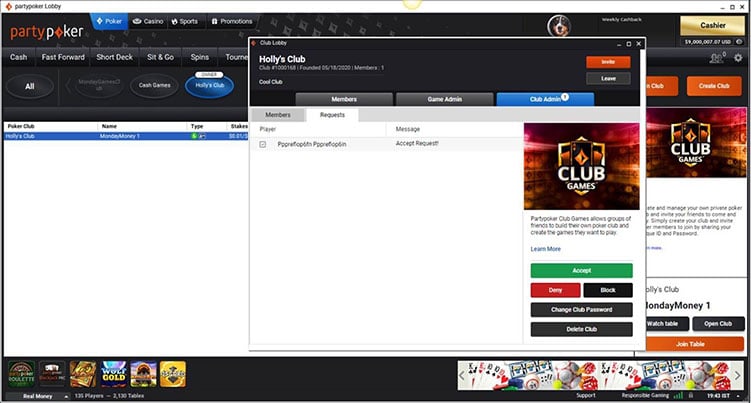
Club Games
Run it Twice – Cash Games
Run it Twice is a fantastic tool that can help reduce the swings in poker. This feature has been well-received by our fastforward players, so we’re bringing it to the cash game tables too!
When two or more players go all-in, the remaining cards are dealt twice, creating two boards. The pot is split in two and the board is run twice; half of the pot is awarded to the winner(s) of each board. This gives players two chances of winning a share of the pot.
Run it Twice is optional; all remaining players in the hand must be all-in with the feature switched on. If this is not the case, the board will play out once, as usual.
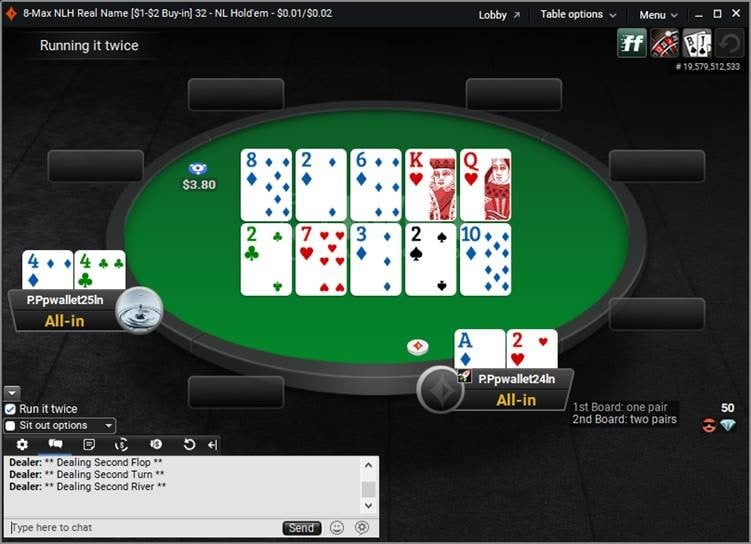
Run it Twice
SPINS Ultra
An ever faster paced version of SPINS!
This thrilling format is perfect for players in a hurry, knowing there’s a potential huge win just minutes away.
A unique SPINS Ultra theme will be displayed in the lobby to differentiate it from regular SPINS.
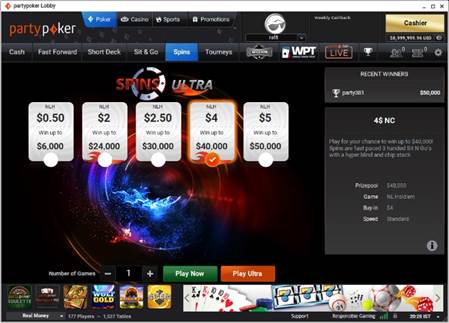
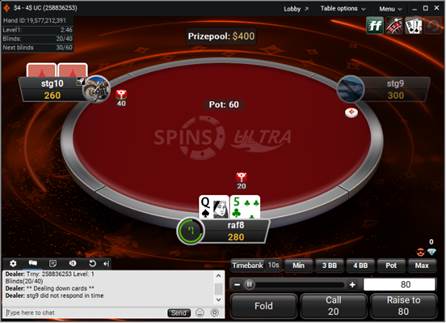
SPINS Ultra
Emojis and Throw Animations
After initially being released on mobile, emojis and throw animations are now ready to use on our desktop client!
As part of our ongoing efforts to increase the gamification of online poker, players can throw objects such as eggs and champagne bottles at their opponents! There’s also a whole host of giant emojis for players to use.
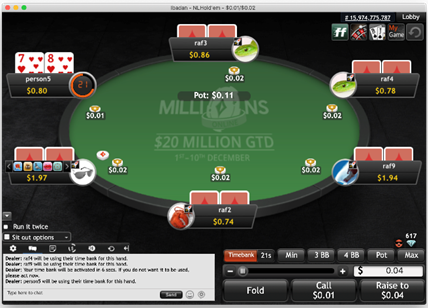
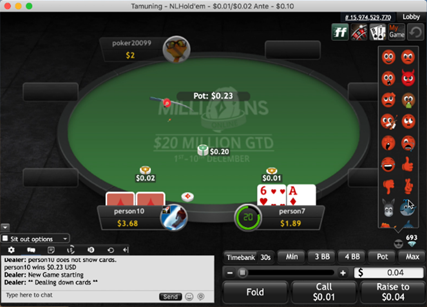
Emojis and Throw Animations
fastforward lobby variable buy-ins
The lobby now enables players to buy-in for less than 100 big blinds. This gives players more freedom to play their desired stake with more control over how much they initially bring to the tables.
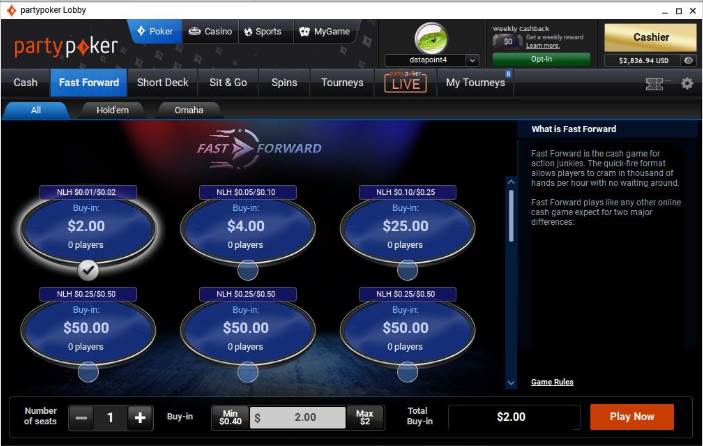
fastforward lobby variable buy-ins
partypoker LIVE Tab
We’ve improved the partypoker Live tab layout, and with high-profile series continuing to be moved online, you can easily find the scheduled games.
The March 2020 software update brings the following great new features:
Diamond & Rabbit Hunt
Earn Diamonds through your play at the tables! You’ll be able to spend them on features such as Rabbit Hunt, where you can see the remaining card(s) that would have been dealt. Rabbit Hunt will initially be rolled out on SPINS!
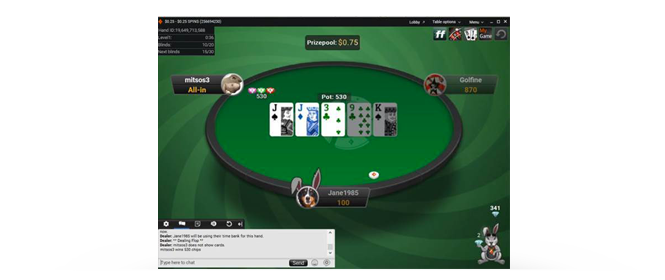
Diamond & Rabbit Hunt
Equal blinds for heads-up games
For heads-up tables, both players must play an equal number of big blinds before leaving the game.
Similarly, a player will only be able to ‘sit out’, once they have been through the as many big blinds as their opponent.
If a player quits the game before the number of big blinds is equal, they will automatically post and fold.
This is part of partypoker’s continued efforts to create an even fairer online poker environment!
The January 2020 software update brings the following great new features:
Run it Twice
Help reduce cash game swings with our new fastforward feature!
Run It Twice deals two sets of remaining board cards to two or more all-in players.
The pot divides into two equal parts – one for each board. They are contested separately.
If any player active in the hand does not agree to run it twice, the board will complete as usual.
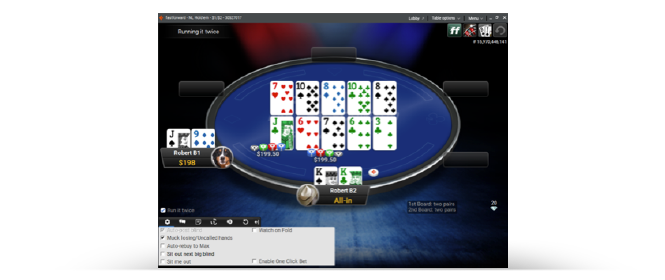
Run it Twice
King of the Hill
A new addition to heads-up cash games, King of the Hill creates more action by making players ‘battle’ for the table.
There will be a limited number of tables available at each stake, and players can only wait at one table per stake level. This forces players to compete against each other, rather than unfairly waiting for ‘less-skilled’ opponents.
However, if both players in a heads-up game agree to open additional tables, this will still be considered as one game. Namely, it won’t count towards the number of tables available for that stake.
fastforward lobby
Slicker, smoother and easier to navigate!
The re-designed fastforward lobby adopts a format similar to the Short Deck lobby, allowing you to be seated in no time.
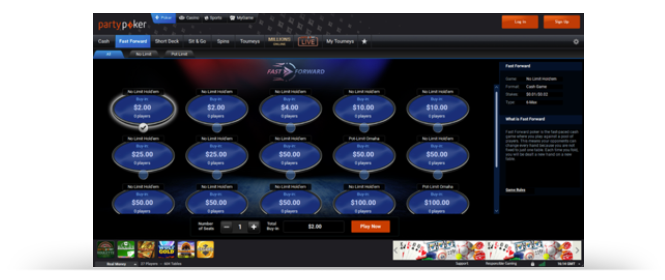
fastforward lobby
ITM indicator
Real-time updates on your tournament progress!
The upgraded ITM indicator is located in the top-left corner of your screen during tournaments and SNGs. It now displays even more useful information, such as:
- Your position and the number of players remaining
- The number of players that will cash
- The amount of money that you have currently cashed
- Value of the next pay jump
- Any bounties collected
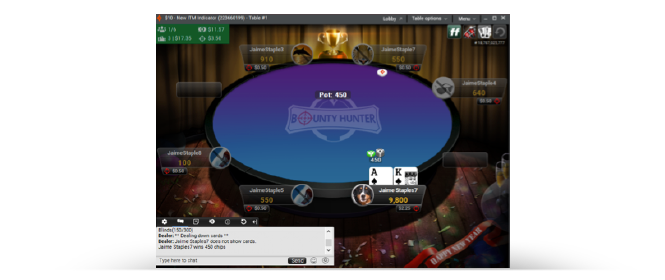
ITM indicator
The October 2019 software update brings the following great new features:
Ante Cash Games
From October, players will be able to enjoy cash games with the use of antes.
Antes create more action due to the increased ‘dead money’ in the pot at the beginning of each hand. They are collected from each player before a card is dealt, and are the same value for every player.
For example, at a $1/$2 NL cash game with six players sat in and an ante of $0.40, the value of the pot stands at $5.40 before any voluntary money is contributed.
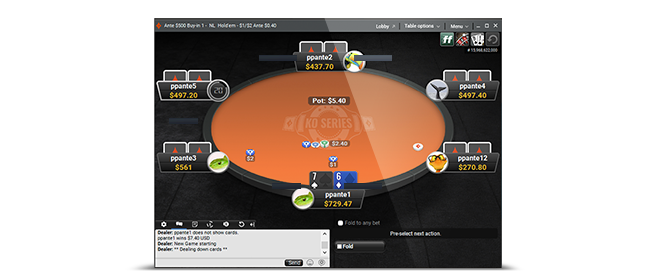
Ante Cash Games
MILLIONS Online tab
To support the 2019 edition of partypoker LIVE’s flagship MILLIONS Online tournament, a dedicated tab has been added to the main partypoker lobby located in between ‘Tourneys’ and ‘partypoker LIVE’.
Here players can find all the satellites awarding seats into the $20M guaranteed tournament, along with the showpiece event itself, scheduled to take place between December 1-10.
To accommodate the new MILLIONS Online tab, the previous ‘Favourites’ tab has been replaced by a star (*).
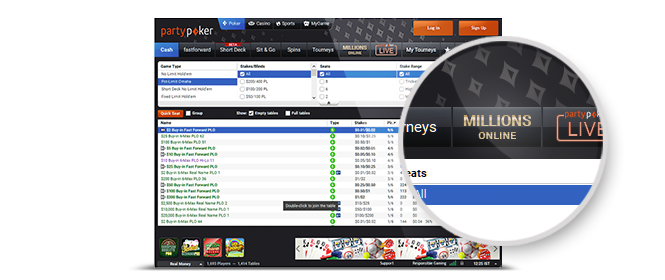
MILLIONS Online tab
Max. 9 simultaneous fastforward tables
The update also now lets you play up to nine fastforward tables simultaneously across all stakes, allowing players to see even more hands and rack up Cashback points at a quicker rate than previously.
Search for these fast-paced cash games under the ‘fastforward’ tab in the partypoker lobby.
Have a look below at the exciting updates that you can take full advantage of from September 2019!
New table data points
- Position – A player’s position and the total number of players remaining in the tournament
- Average Stack – Display of the average stack for the tournament or, if a player is displaying chips in big blinds, the average big blinds
- In The Money (ITM) – The ITM indicator displays how many prizes will be awarded for the tournament
- Multi-colour ITM display- Position and ITM will be highlighted depending on how close a tournament is to the prize pay-out:
- No highlight when the field remaining is greater than 120% of number of players ITM
- Amber highlight when field remaining is 120% or less of number of players ITM
- Green highlight once ITM is reached
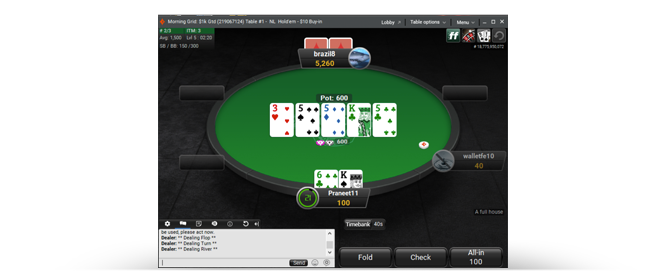
New table data points
Late Reg Countdown
To make it clearer to players when late registration will close, a new countdown has been added to the status column and the right hand panel for a selected tournament in the lobby.
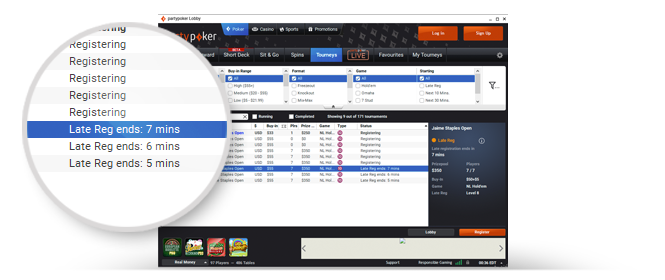
Late Reg Countdown
New KO Series table theme
A new theme replaces the recent POWERFEST theme to support the up and coming series that is offering over $30 Million in Guaranteed prizes. Click here to learn more about the series.
One-click bet
The windows download client also received an additional update. By enabling the new One Click Custom Bet feature in their global settings, players now have the ability to click a custom bet and place the bet immediately, without the need to re-confirm the bet by clicking the raise button.
Here’s partypoker Team Online’s Jaime Staples talking through some of the exciting new features in the latest partypoker software release
Monday, June 17 sees a major overhaul of partypoker’s cash game product, which brings the following software changes:
Forced screen name change
From 09:00 BST (10:00 CEST) all players will be required to select a new player alias (screen name) when they log into the client – allowing everyone on partypoker’s global dotcom license to start afresh with a clean slate.
Names are subject to the site’s usual rules about behaviour and language, and will be available on a first come, first served basis.
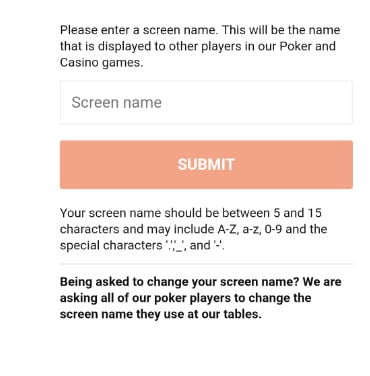
Name Change Update
Removal of local hand histories
As part of the ecology changes partypoker will no longer be offering the option for players to obtain/download hand histories.
This means that databases cannot be created to analyse players and HUDs will no longer work across the dotcom liquidity.
A new redesigned hand replayer was recently introduced in respect of this change.
Prohibition of third-party software
Another change will see most third-party software prohibited from being used while playing on partypoker, with the exception of ‘partycaption’ and ‘StackAndTile’.
Suspected use of any other third-party software may result in permanent ban from the site.
Disabling of ‘railing’
As part of the update players will no longer be able to observe cash game tables that they are not sat at, also known as railing.
Country flags hidden
In addition, we’ve hidden country flags from the tournament lobby and have also removed the ‘mouse over’ display of country for a player's plate at the game table.
This further enforces the clean slate provided by the enforced screen name change and protects the identity of players, in particular those of low volume countries and playing at high stakes.
Four-colour deck hand replayer
partypoker recently introduced a redesigned hand replayer in support of the changes, which features a new four-colour deck in response to player feedback.
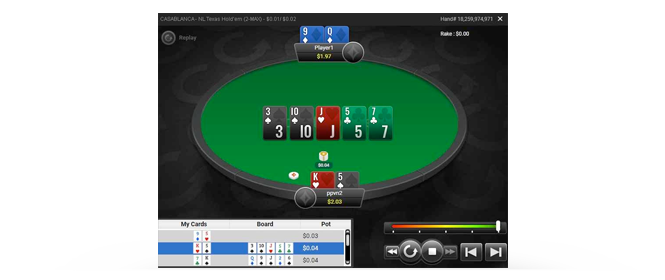
Four-colour deck hand replayer
Tuesday, May 28 sees the addition of the following features:
Redesigned hand replayer
We’ve introduced a redesigned hand replayer featuring optimised controls to provide a smoother playing experience.
The update brings a simplified dashboard that displays only vital information, while the game table, player plates and avatars have all been updated to give an exact visual replica of hands played.
In addition, the new replayer immediately displays the result of the last hand when launched from the poker table. This means players won't need to navigate through each action in the hand to see the outcome.
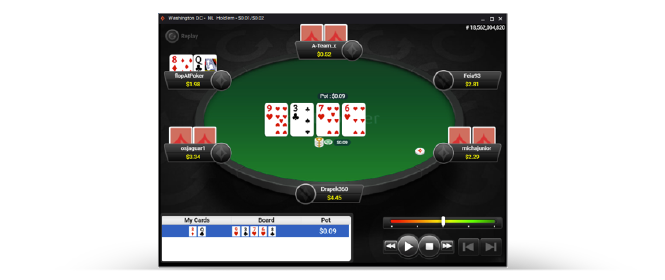
New hand replayer
New table dashboard
A separate dashboard has also been added to the game table that launches the hand replayer and also gives a snapshot view of recent hands played.
Thursday, 14 March sees the latest partypoker software update, which brings with it a raft of new features.
Short Deck
Short Deck poker hits the client.
This exciting cash game format is played with a reduced deck of cards, with all cards below “6” removed, leaving 36 cards to play with. The game plays almost identically to Texas Hold’em, except a flush beats a full house and there is no small or big blind. Instead, everyone pays an ante (in addition to a button ante) to help generate action. This is a game that has increased in popularity in the high stakes world and now we’re bringing it to the masses.
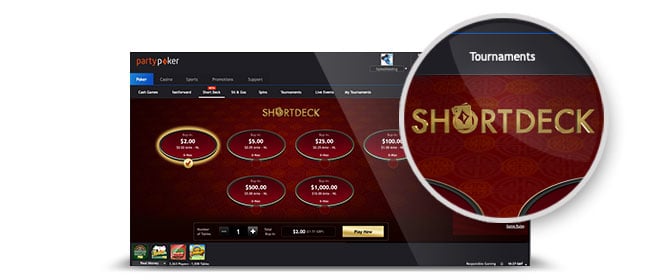
Short Deck lobby
Multi-select categories
Players will be able to multi-select tournaments filters once they have downloaded the new partypoker software, allowing them to select multiple category options from the tournament lobby.
For example, players can now select “Monster Series” and Power Series” simultaneously, and all the multi-table tournaments from these categories will be displayed.
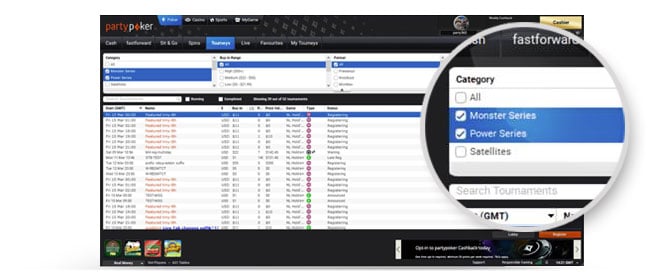
Multi-select categories
Buy-in changes for tournament filters
The buy-in filters have been slightly tweaked to represent the stake ranges as follows:
- 'Super Micro' changed from $0.01 - $0.99 to $0.01 - $1.99
- 'Micro' changed from $1.00 - $4.99 to $2.00 - $4.99
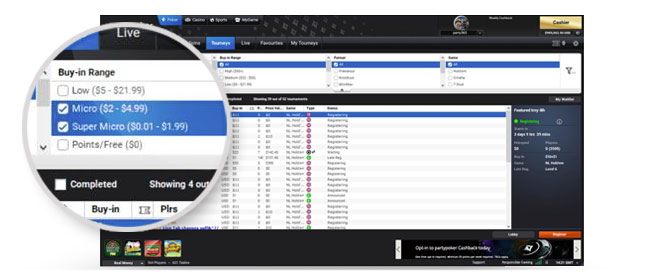
Tournament Filter update
Coloured tournament & fastforward names (tournaments lobby)
Prefixes and suffixes of tournament names are displayed in different colours to allow players to identify various tournament parameters such as tournament name, tournament series (if any), guarantee (if any) etc.
Casino tiling
This update will allow players to play poker as well as multiple casino games at once within the poker app. This allows players to:
- Resize the casino Windows to the same size as poker games and the default size will be the same as poker games, without disturbing the components and button positions in casino games.
- Tile the casino Windows with poker games, tiling will tile all casino and poker games.
- Cascade the casino Windows with poker games, cascading will cascade all casino Windows and poker tables.
Have a look below at the exciting updates that you can take full advantage of from February 2019!
Tournament lobby
The main partypoker lobby has been given a new and improved ‘look and feel’ with the addition of partypoker branding in the new and updated product navigation, making it easier to select games, in addition to a new cashback progress bar with partypoker branding.
My Game
In the new navigation, players can now select MyGame, providing access to a great new poker coaching tool to help players improve their game.
SPINS
The software update will also see the site’s current “Sit & Go Jackpots” games rebranded as simply, “SPINS”. The games will now enjoy a smoother animation, and to celebrate the rebrand, partypoker has introduced a new $5 buy-in game with the potential to win a huge $1,000,000 first prize. Look out for more exciting “SPINS” announcements very soon.
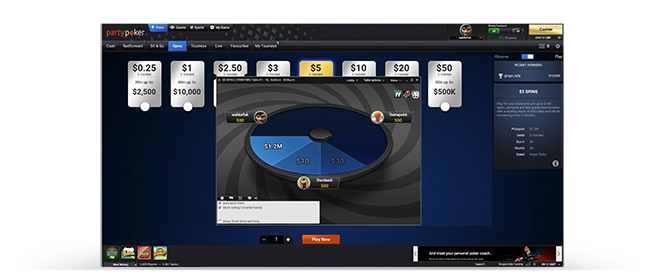
SPINS Table
Have a look below at the exciting updates that you can take full advantage of from November 2018!
Tournament lobby
Open up any tournament lobby to check out some of the cool new features we’ve added.
You can now expand and collapse the tournament dashboard to give you greater control of your lobby appearance, while a new digital clock displays important details of the tournament’s progress.
Left of the clock you’ll find information relating to the name and status of the tournament, late reg. info, next blind level, remaining / total registered players, as well as smallest, largest and average stack sizes.
Head to the right of the clock to take a seat in the tournament, find out prize pool info, bounty details and the stack size you’ll start with.
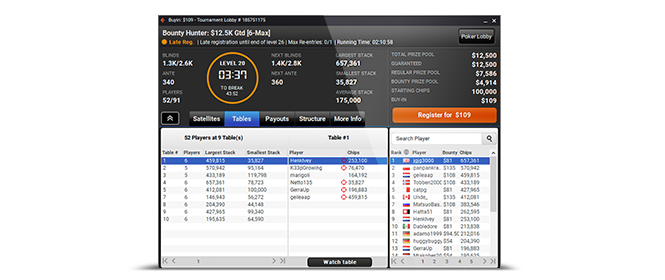
Updated tournament lobby
Player lists
The enhanced player list function allows you to search players, get tournament standings updates showing player names, nationalities, stack sizes and bounty info.
Here you can also see who’s already busted out of the tournament, with eliminated players’ info shown in grey.
Expand each column in the Player list for a fuller view.
Quick access navigation tabs
The navigation tabs are where you’ll find detailed MTT tournament information on satellites, tables, payouts and structures in an instant, while Sit & Go tournaments will display only payout and structure information.
Position/stack
For those players registered in a tournament that has started, the ‘Position/Stack’ display provides a snapshot of your current ranking in the tournament alongside your chip stack, which you can compare against the tournament’s highest, shortest and average stacks.
Have a look below at the exciting updates that you can take full advantage of from October 2018!
Chipstack display
We’ve expanded our popular ‘Chips/ Big Blind toggle’ feature that allows you to display your stack in terms of big blinds.
You can now also convert your bet slider and all bets and pots into big blind values for a more consistent, optimised playing experience, and to help your gameplay across all stages of the tournament.
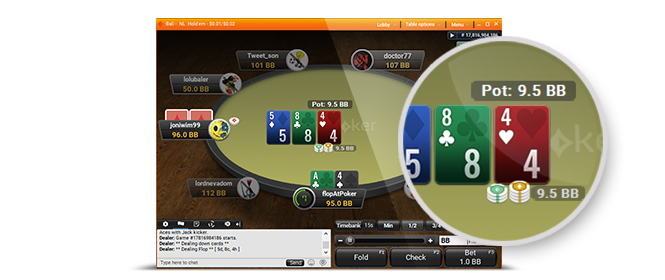
Chipstack display
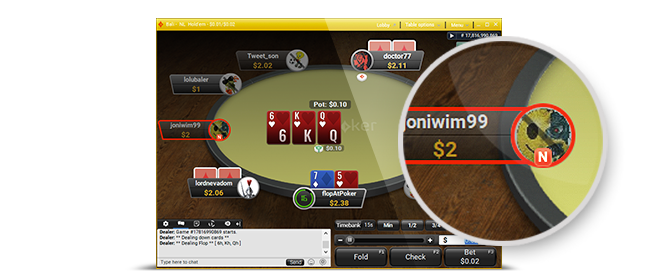
Player notes
Like to keep tabs on your foes? The new ‘Player notes’ icon is displayed whenever you make notes on an individual player, making it clearer to see who you’ve kept track of.
You now also don’t have to customise a player’s particular notes colour.
Player notes
Table settings preview
Want to see what the different cards look like on the table? We’ve updated our customisation preview feature to also show how the cards will look when dealt before you make a decision.
Head to ‘Settings’ to sample a design you like the look of.
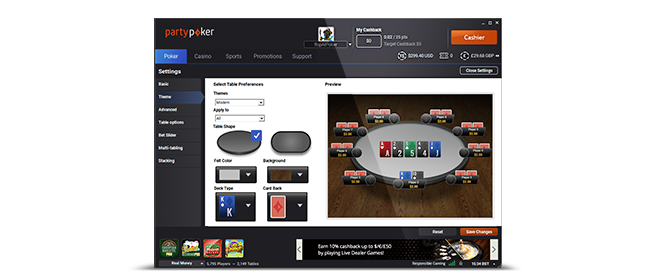
Table settings preview
Retain table themes
We’ve improved our software so that you can now retain your favourite table themes whenever you are moved tables due to player balancing.
Plus check out the great updates we’ve got coming up for our Tournament lobby.
We’ve made several changes to the tournament lobby to give you an even greater playing experience at partypoker. Some of the key features of the tournament lobby update are described below.
You can now expand and collapse the tournament dashboard to give you greater control of your lobby appearance, while a new digital clock displays important details of the tournament’s progress.
Left of the clock you’ll find information relating to the name and status of the tournament, late reg. info, next blind level, remaining / total registered players, as well as smallest, largest and average stack sizes.
Head to the right of the clock to take a seat in the tournament, find out prize pool info, bounty details and the stack size you’ll start with.
Upgraded tournament lobby
Player lists
The new and improved player list function allows you to search players, get tournament standings updates showing player names, nationalities, stack sizes and bounty info.
Here you can also see who’s already busted out of the tournament, with eliminated players’ info shown in grey.
Expand each column in the Player list for a fuller view.
Quick access navigation tabs
The navigation tabs is where you’ll find detailed MTT tournament information on satellites, tables, payouts and structures in an instant, while Sit & Go tournaments will display only payout and structure information.
Position/stack
For those players registered in a tournament that has started, the ‘Position/Stack’ display provides a snapshot of your current ranking in the tournament alongside your chip stack, which you can compare against the tournament’s highest, shortest and average stacks.